
Nitro QuickSign Greyed Out: How to Restore It
Start Here: One PDF or Every PDF?

This guide applies to Nitro PDF Pro on Windows when the QuickSign option is greyed out or unavailable. Menu labels and version folders may differ between releases.
QuickSign places an electronic copy of your signature on a PDF. It is different from a certificate-based digital signature, which can protect a document from further changes.
Check Document Restrictions
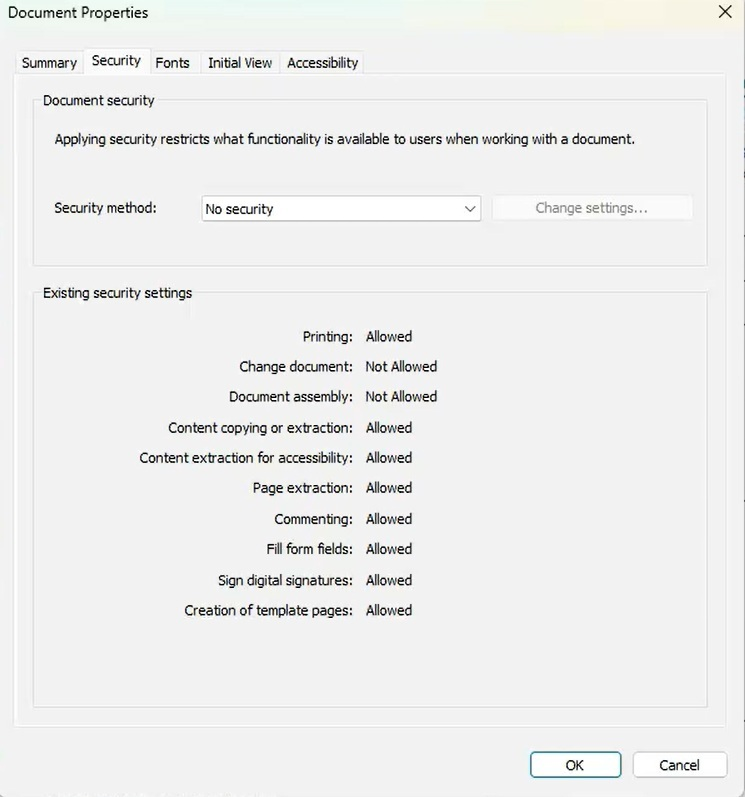
The source example below has Change document set to Not Allowed while Sign digital signatures remains Allowed. Those are separate permissions; permission to add a certificate signature does not necessarily permit a QuickSign stamp.
Extract Pages into a New Copy When Permitted
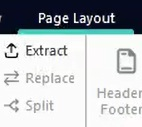
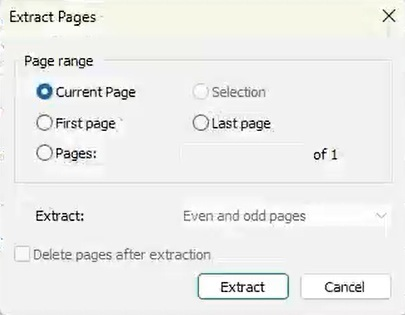
The NTS troubleshooting procedure includes extracting pages into a new PDF as a possible workaround. Use this only when page extraction is allowed and the document owner permits you to create and sign a separate copy.
Note: An extracted PDF is a new document. It does not preserve the original document's certificate signature validation. Keep the original, and use an unsigned copy from the sender when an existing digital signature must remain valid.
Check for an Existing Digital Signature
A PDF signed with a certificate-based signature, including one created in Adobe, may restrict further changes to preserve its signed state.
Reopening Nitro is a troubleshooting check; it does not remove signature restrictions. Avoiding an existing signature on screen does not make a locked document editable.
Reset the Local Stamps Folder
If QuickSign is greyed out in every PDF, try the local Stamps-folder reset from the NTS support procedure.
%appdata%\Nitro\Pro\Note: Renaming keeps the original folder as a backup. Previously saved stamps or QuickSign signatures may need to be recreated. Keep the backup until you have confirmed the reset worked. If the version folder or Stamps folder is missing, contact support rather than changing unrelated folders.
Repair the Nitro Installation
If QuickSign remains unavailable across PDFs after resetting the Stamps folder, repair Nitro PDF Pro.
If your installation does not offer Change or Repair, contact your IT team for help.
Confirm the Fix or Get Help
Paige Baldwin on the Network Thinking Solutions team solved this issue for a client. This guide shares the troubleshooting steps to help others experiencing the same problem.
Once QuickSign is available, test on a permitted copy: place the intended signature, save the PDF, and reopen it to confirm the signature appears.
If the issue continues, send NTS Support your Nitro version, whether one PDF or all PDFs are affected, the relevant Security-tab permissions, and which steps you tried.
References
Adapted from the NTS support procedure, Quick Sign Unavailable in Nitro, dated October 8, 2026. The Stamps-folder reset and installation repair steps come from that procedure.
Nitro's QuickSign guide: https://www.gonitro.com/user-guide/pro/article/stamp-your-signature-with-quicksign
Nitro's guide to digital signatures and document restrictions: https://www.gonitro.com/user-guide/pro/article/how-to/digitally-sign-a-pdf-file